
- Purchasing a New Domain through ZipWP Cloud
- How to Connect Your Domain and Go Live with ZipWP Cloud?
- What is ZipWP Cloud?
- Understanding the ZipWP Cloud Dashboard
- Connecting a Custom Domain to Your Site (Nameserver vs. CNAME)
- Why is My WordPress Site Not Loading? (Common Causes & Fixes)
- Disk Usage & File Limits (Inodes) Explained
- AI Troubleshooter
Using ZipWP MCP with AI Tools
Imagine telling your AI assistant, “Create a new site for my bakery” and just watching it happen. No clicking around dashboards, no hunting through menus. That’s exactly what ZipWP’s new MCP integration makes possible.
ZipWP now supports the Model Context Protocol (MCP), an open standard that lets AI tools like Claude connect directly to your ZipWP account and manage your WordPress sites through plain conversation. It’s kind of like giving your AI a backstage pass to your account.
So What Exactly Is MCP?
MCP stands for Model Context Protocol, and while that sounds technical, the idea is simple: it’s a secure bridge between your AI assistant and the apps you use. Once connected, your AI can list your sites, spin up new ones, clone templates, and more, all from a chat window.
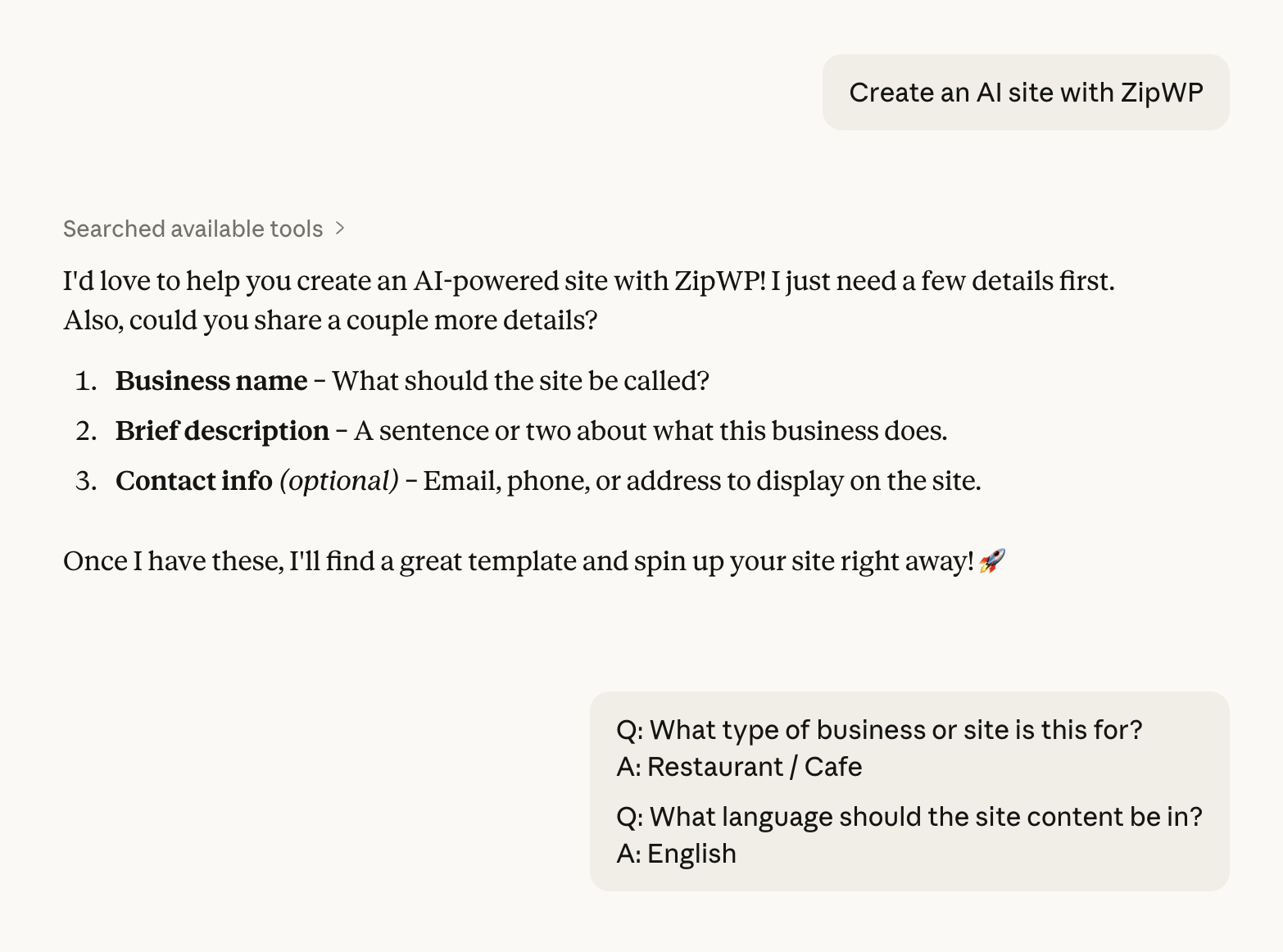
You talk, it acts. That’s really it.
What You’ll Need Before Getting Started
A few things to have ready:
- A ZipWP account on an active plan
- Claude Desktop and/or the Claude CLI installed
- Node.js on your computer (grab the latest LTS version at nodejs.org. It’s free and quick to install.)
Step 1: Create an API Token
Your AI needs a token to prove it’s allowed to access your account. This also lets you control exactly what it can and can’t do.
- Go to my accounts from ZipWP account
- Head to API Tokens in your account settings
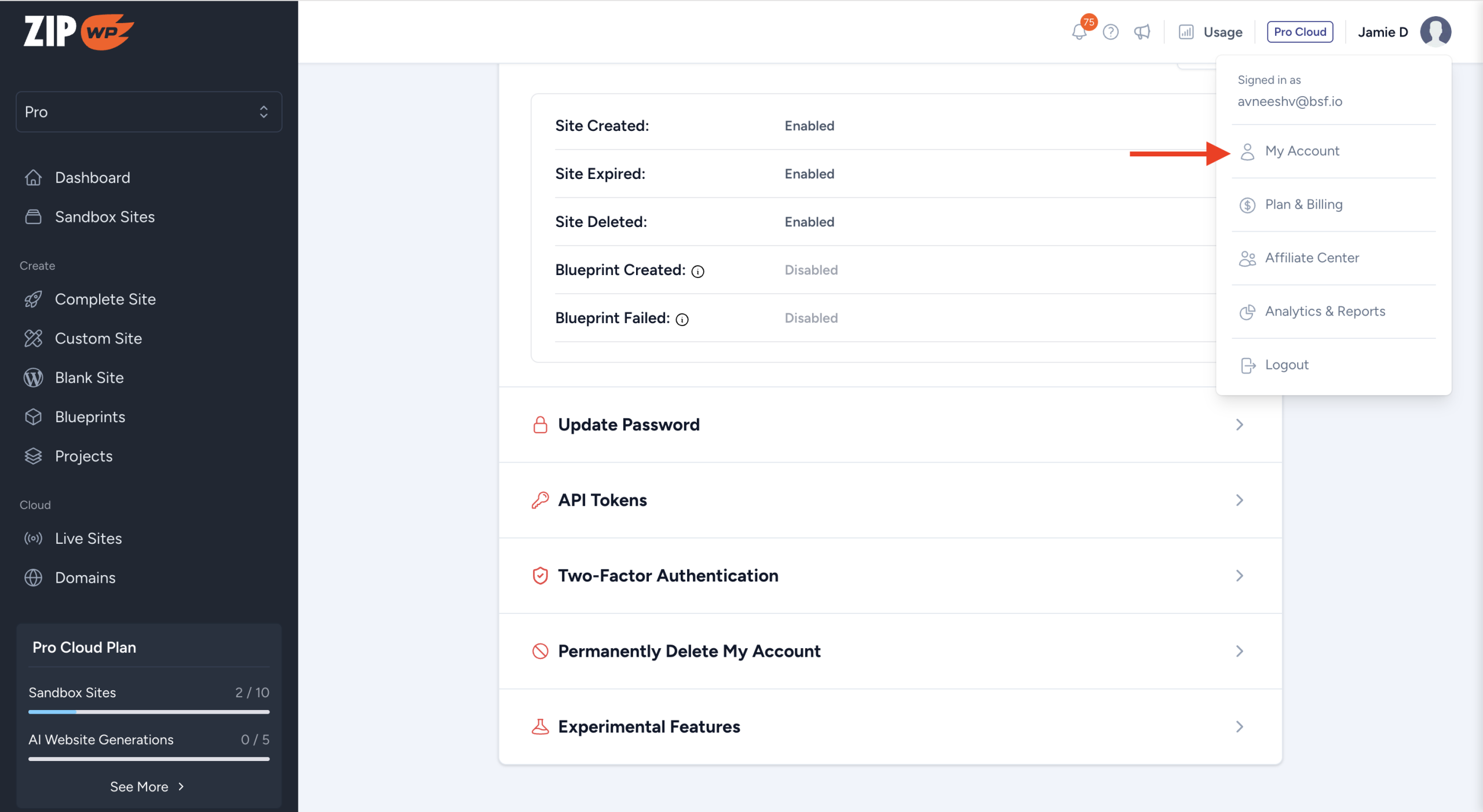
- Click Create Token and give it a friendly name like
Claude MCP
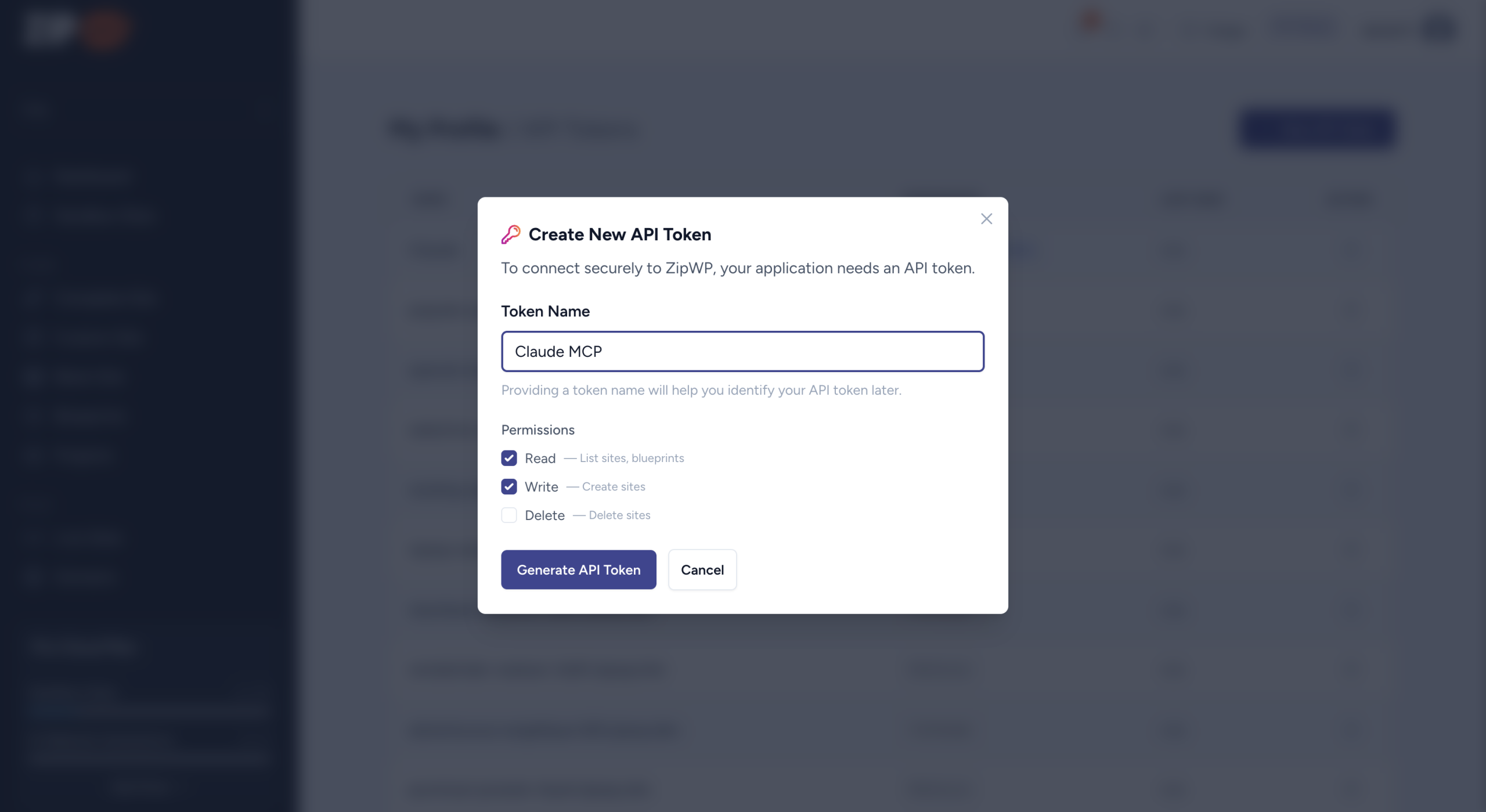
- Choose the permissions (called “scopes”) you want to grant:
| Scope | What it allows |
|---|---|
read | List sites, templates, and blueprints; check build progress |
write | Create and clone sites |
delete | Permanently delete sites |
Quick tip: Select all three for full access. If you’d rather your AI only read and create but never delete, just leave
deleteunchecked.
- Click Create and copy your token right away. You won’t be able to see it again after you leave the page.
Step 2: Connect Your AI Client in Claude
Claude Desktop supports MCP servers via a configuration file. You can edit it by going to Settings → Developer → Edit Config, which opens a claude_desktop_config.json file.
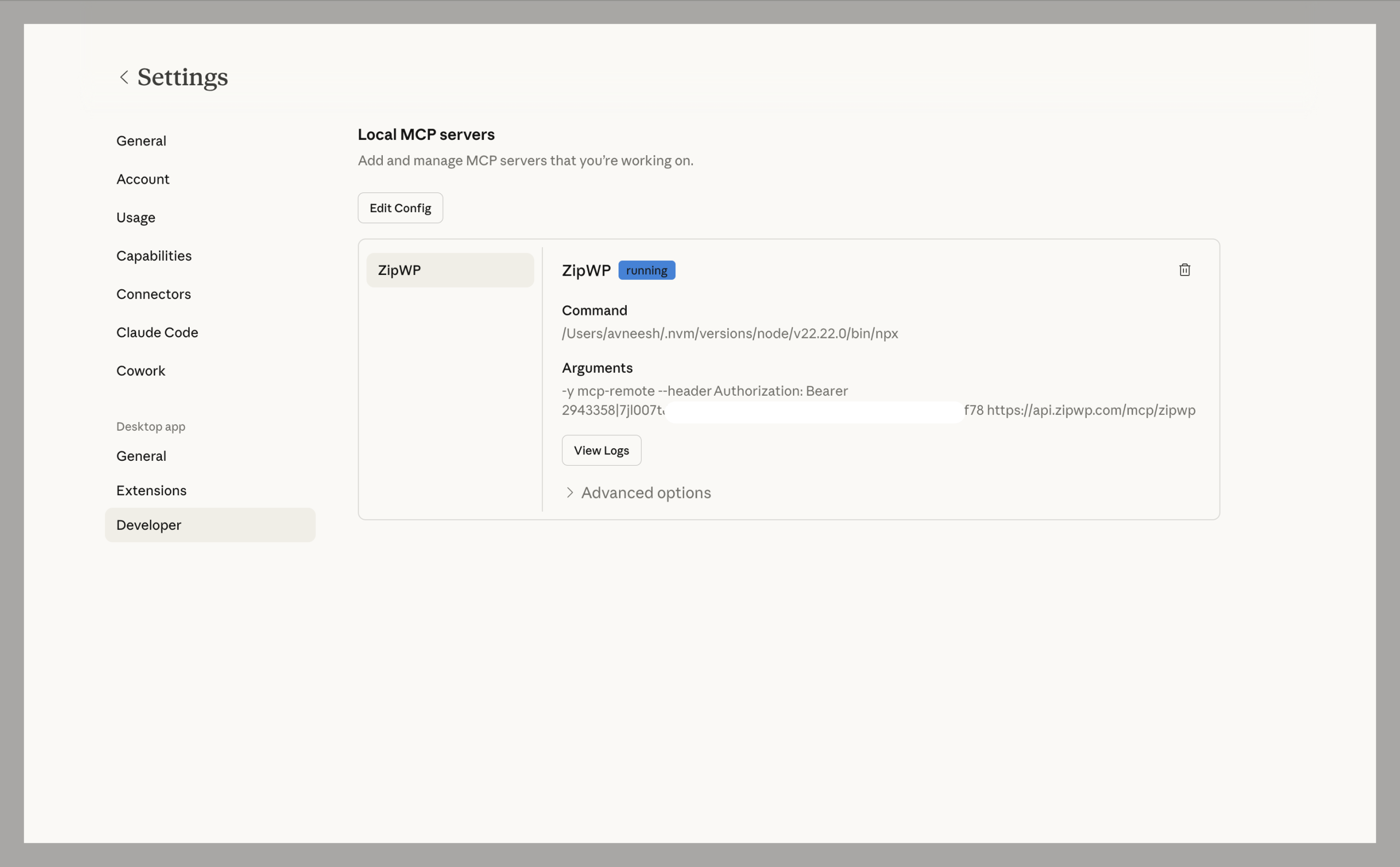
Add your server like this:
Then add this to the mcpServers section, swapping in your actual token, in Authorization, that you created from your ZipWP account.:
{
  "mcpServers": {
    "zipwp": {
      "command": "npx",
      "args": [
        "mcp-remote",
        "https://api.zipwp.com/mcp/zipwp",
        "--header",
        "Authorization: Bearer YOUR_TOKEN_HERE"
      ]
    }
  }
}
Save the file and restart Claude Desktop.
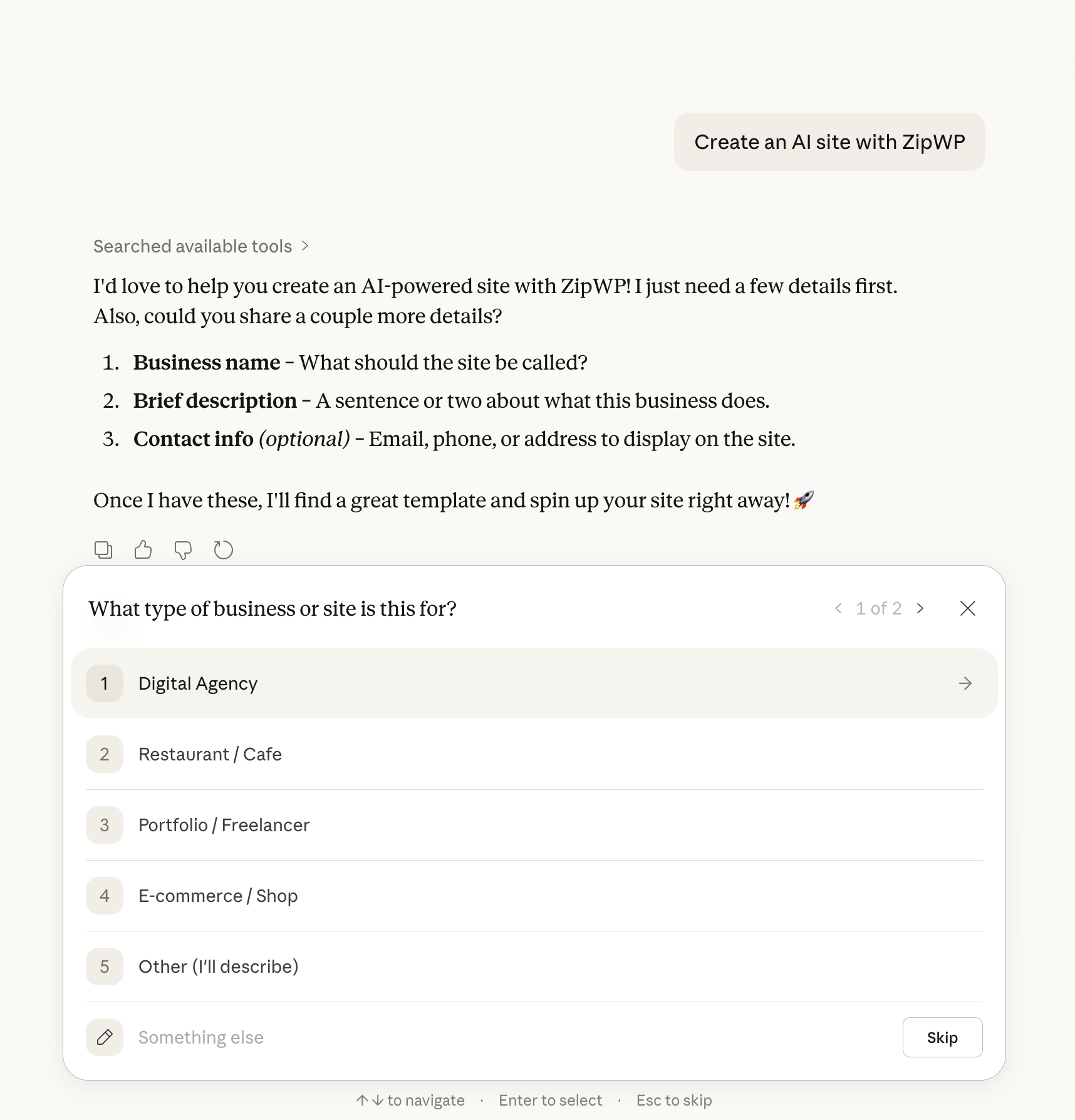
That’s it! You can start giving prompts to Claude related to ZipWP like create an AI site with ZipWP, create a blank site with ZipWP, etc.
What Can You Actually Do?
Here’s a rundown of everything ZipWP’s MCP integration supports:
| Tool | What it does | Scope needed |
|---|---|---|
list-sites | List and search your sites | mcp:read |
get-site-progress | Check live build progress | mcp:read |
list-templates | Browse templates by category or keyword | mcp:read |
list-blueprints | Browse your saved blueprints | mcp:read |
create-blank-site | Create a blank site with optional plugins & themes | mcp:write |
create-ai-site | Generate a site from a template + your business info | mcp:write |
create-site-from-blueprint | Build a new site from one of your blueprints | mcp:write |
clone-site | Clone an existing site | mcp:write |
delete-site | Permanently delete a site (requires confirmation) | mcp:delete |
Some Prompts to Get You Started
Not sure what to say? Try these:
- “List my sites”
- “Show me templates in the restaurant category”
- “Create a blank site called My Portfolio with the Astra theme and WooCommerce”
- “Create an AI site for a bakery called Sunrise Bakery — family-owned, specializing in artisan breads”
- “Create a site from my [blueprint name] blueprint”
- “Clone my site [site-uuid]”
- “Delete site [site-uuid]”
A Few Common Questions
Do I need to install anything on my WordPress sites?
Nope! ZipWP MCP runs entirely in the cloud. The only local requirement is Node.js on your computer, and that’s just for the connector.
Can the AI accidentally delete my sites?
It can only delete sites if you explicitly granted the delete scope. Even then, the delete tool requires an extra confirmation in chat as a second safeguard. So it’s safe to use. And blueprint sites can’t be deleted via MCP at all.
Site creation feels slow. Is something wrong?
It’s totally normal! Provisioning a WordPress site takes 60–90 seconds on average. Your AI will keep you updated with live progress so you’re never left guessing.
What plan do I need?
MCP is available on the free plan, so you can start connecting your AI and managing your sites right away. That said, if you want to unlock more site generations and get the most out of ZipWP’s AI-powered tools, upgrading to a premium plan is the way to go. Check out your options at app.zipwp.com/pricing.
Does this work with AI tools besides Claude?
Absolutely. Any MCP-compatible client works, including Cursor, Windsurf, and Zed. The process is almost similar in all apps. You just have to make sure that you update Node.js version, update the config file with correct API token in the AI tool.
We don't respond to the article feedback, we use it to improve our support content.